
Step 1: Go to Vehicles (below Dashboard) and select the vehicle for Consumer Sale.
Step 2: Confirm it is the correct customer, then select the ellipsis (⋮) menu above the Locate Now button.
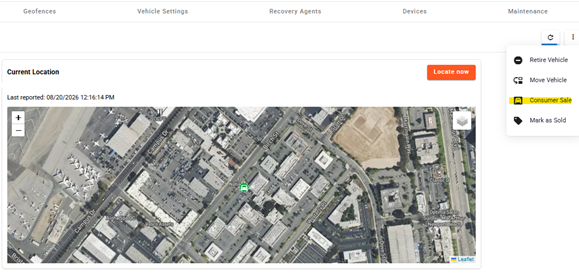
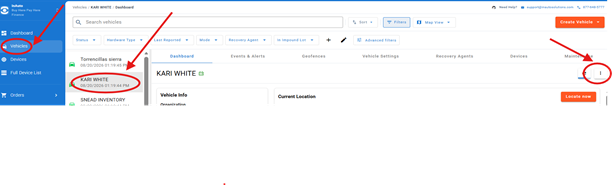 Step 3: In the drop-down menu, select “Consumer Sale.”
Step 4: Complete all requested fields. If there is a co-signer, select “Co-signer” at the bottom.
Required field notes:
- Customer Price is the amount you sold the device to the customer for.
- End Loan Date is the duration of airtime you sold to the customer for the device.
- Maintenance Profile can be skipped.
- Customer Information is the Consumer (your customer’s information).
- Confirm the email address, since sign-in information will be sent there.
Step 5: Select Continue once all required fields are complete.
Step 6: Review and confirm the summary.
Important: There will be a charge and additional payment required if the End Loan Date you input exceeds the service time remaining on the device. To avoid additional charges, input an earlier date than device service term.
Step 7 (Optional): End Loan
For cash sale and outside financing (no in-house/ BHPH) vehicles, complete this step immediately after the Consumer Sale:
Return to the ellipsis (⋮) menu from Steps 2–3 and select "End Loan".
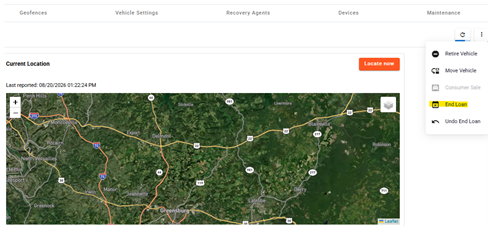
This step is required for consumer privacy and compliance. Once the dealership no longer holds a financial interest (lien) in the vehicle, it no longer has the legal right to access the customer's location data. Selecting "End Loan" removes the dealership's access, ensuring the customer retains full control over their own location information.
Confirm Completion: Once Step 7 is fully completed, the device should no longer appear in your account. Confirm by going back to Vehicles (on the main side bar).
Updated: 10/1/2026