
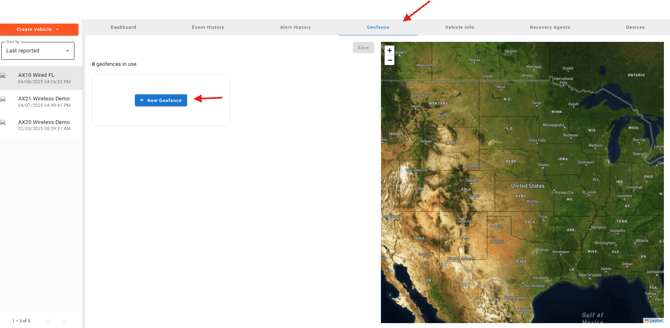
On your selected vehicle use the tabs at the top and select "GeoFence" and select "Add new Geofence"
Start entering the address for the geofence you need, it should auto populate below the address if it is a valid one. 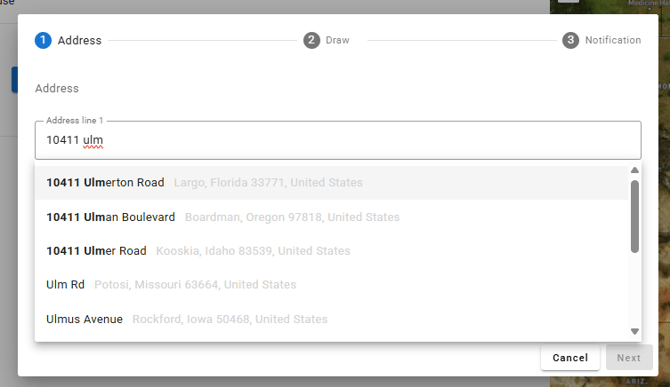
Once the address is selected and you hit next you can:
(1) Zoom in and out to get a good look at the area
(2) Use Polygon or Circle tool to create a perimeter around the address you would like to be notified of.
(3) Add layers or delete layers.
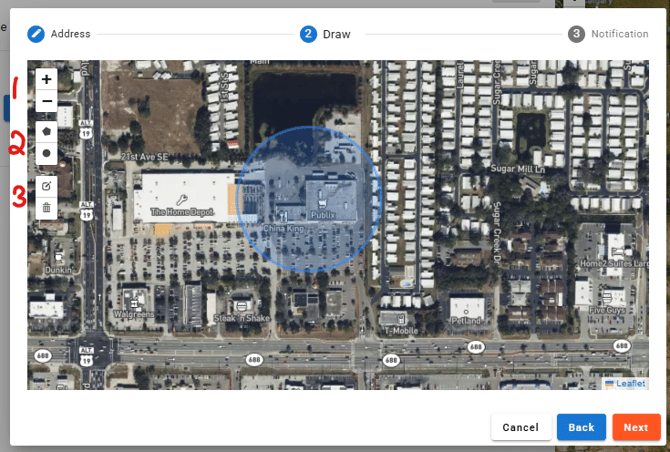
Once the perimeter is set hit next which will finish it up with the notification options.
Name: This is what will appear in emails and in your geo-fence list.
Triggers: In and out to alert you when they enter or exit or both (if toggled on)
Emails: If you would like to receive a notification for the entry or exit.
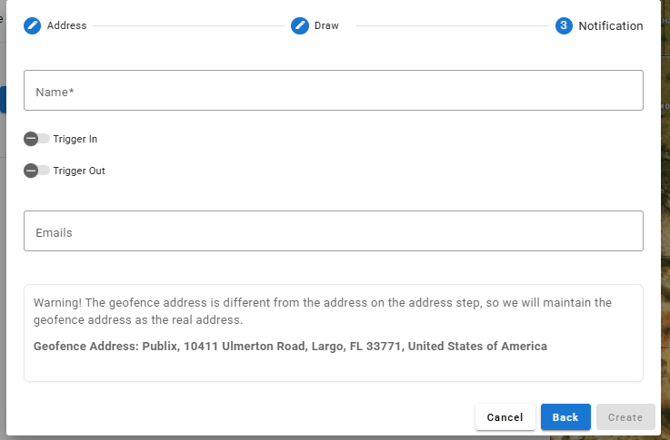
Once created its very important to save before leaving the page to confirm that the geo-fence has been set.
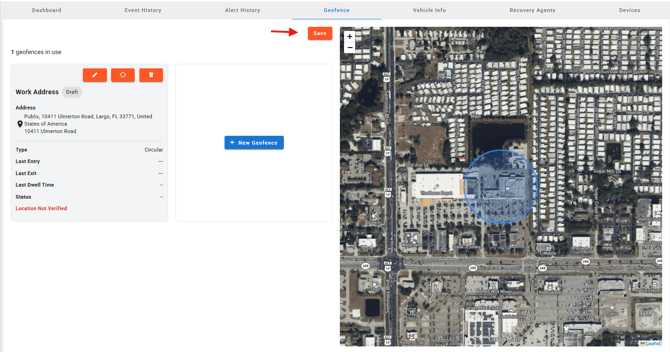
Please Note: This is a device based geofence and for individual addresses like work, home, or businesses per customer will need to be applied per device.